
You just downloaded a 30-page technical paper, an instruction manual, a legal contract, or an academic eBook in another language, and you need to understand it right away.
Your first instinct might be to select text, hit Ctrl+C, paste it into an online translator, and repeat. But after three paragraphs, you hit the wall: page breaks split sentences in half, two-column layouts merge into scrambled nonsense, formulas turn into random characters, and your document’s visual structure vanishes completely.
The Core Dilemma
Translating a PDF quickly shouldn't force you to choose between speed and readability. Overwriting the entire document destroys formatting, while manual copy-pasting drains hours of productive study time.
Translating a PDF quickly and reliably is one of the most common bottlenecks for students, researchers, engineers, and international professionals.
Why is it so tricky to translate PDFs without breaking them, what are the fastest methods available right now, and how can you achieve near-instant comprehension without sacrificing formatting?

1. Why PDFs Are Notoriously Hard to Translate Fast
To understand why quick translations frequently fail, it helps to know how PDFs work under the hood.
Unlike a Microsoft Word document (.docx) or a webpage (.html), which use flowing text, a PDF is a presentation format designed for exact visual printing. It treats every word, line, and image as an absolute coordinate on a fixed canvas ($X, Y$ positions).
This architecture causes four major headaches for standard translation software:
- Fragmented Sentence Flow: A sentence that wraps around an image or spans across a page break is often stored as separate, disconnected text blocks. When translated naively, engines translate each fragment out of context, producing disjointed sentences.
- Layout & Text Expansion: Translated languages rarely take up the exact same physical space as the original. For example, Spanish, Portuguese, and German phrases are typically 15% to 30% longer than English. When automated tools attempt to paste translated text directly into the original PDF canvas, text overflows off the page or overlaps with illustrations and tables.
- Mangled Technical Jargon: Generic translation models frequently translate domain-specific expressions literally. In machine learning or engineering, terms like “overfitting”, “bias-variance trade-off”, or “cold restart” become nonsensical when rendered without contextual awareness.
- Scanned Images vs. Digital Text: If your PDF was created by scanning a physical page, it contains no searchable digital characters—only raw pixels. Without high-precision Optical Character Recognition (OCR), no translator can touch it.
2. Comparing the 4 Most Common Ways to Translate a PDF
Depending on your urgency, document length, and security requirements, here is how the mainstream translation methods stack up:
| Method | Speed | Formatting Preservation | Technical Accuracy | Privacy & Offline |
|---|---|---|---|---|
| Manual Copy-Paste (Google / DeepL) | Very Slow (1-2 pages/hr) | Completely Lost | High | High |
| Document Upload Translators | Fast (1-3 min) | Medium (Often shifts) | Medium | Low (Cloud upload) |
| Convert to Word (.docx) first | Moderate (5-10 min) | Poor to Medium | Medium | Medium |
| Interactive AI Readers (Readara) | Instant (Zero wait) | 100% Preserved | Exceptional (Context-aware) | High (On-device / Private) |
A. Web Document Upload Translators (Google Translate, DeepL Doc)
You upload the entire .pdf file, the server runs OCR and translation, and generates a new translated .pdf download.
- Pros: Fast for basic reports or simple single-column documents.
- Cons: File size limits (usually 5 MB to 10 MB on free tiers), severe layout shifting on complex multi-column documents, and critical privacy issues if you work with proprietary corporate data or confidential manuscripts.
B. Converting to Word, Translating, and Re-exporting
Using Adobe Acrobat or online converters to convert the PDF into a Word document, using Word’s built-in “Translate Document” feature, and re-exporting to PDF.
- Pros: Lets you manually fix broken sentences and layout issues.
- Cons: Extremely tedious for urgent tasks. Complex tables, mathematical notation, and stylized headings almost always break during the initial format conversion.
C. In-Browser Translation (Chrome / Edge PDF Viewers)
Opening the PDF inside a web browser and right-clicking “Translate to English”.
- Pros: Zero file downloads; convenient for quick skimming.
- Cons: Only works on selectable digital text; frequently crashes on large documents (>50 pages), and cannot provide bilingual comparisons or auditory pronunciation.
3. The 4-Step Blueprint to Translate Any PDF Fast
If you need to process a document right now, follow this streamlined decision flowchart:
Fast PDF Translation Workflow
How to go from raw file to 100% comprehension in 4 steps
OCR Check
Check if text is selectable. If it's a scanned page, run an OCR engine first.
Choose Goal
Quick surface skim vs. deep technical study and retention.
Paragraph Mode
Tap paragraphs in-place. Preserve tables, math equations, and code.
Audio & Dual-Code
Listen to bilingual audio to boost comprehension speed by 40%.
Step 1: Confirm If Your PDF Is Searchable (OCR Check)
Open the file and try to highlight a sentence with your cursor or finger:
- If you can highlight individual words: your file has a digital text layer. You can translate immediately.
- If highlighting drags a blue rectangle across the entire page: your PDF is an image scan. Run it through an OCR tool or open it in a reader with built-in OCR before attempting translation.
Step 2: Choose Between “Bulk Overwrite” and “Interactive Reading”
Ask yourself: Do you need a rough overview, or do you need to actually study and work with the material?
- For a quick, throwaway skim of a government form or restaurant menu, a bulk document translator is fine.
- For technical literature, academic papers, research reports, or books, overwriting the entire PDF creates confusion. You lose the author’s original phrasing, equations can be corrupted, and you cannot verify ambiguous technical terms against the source text. In these cases, in-place paragraph-level translation is vastly faster and more reliable.
Step 3: Handle Specialized Terminology in Context
When translating specialized fields (medicine, law, software engineering, economics), never rely on literal word-by-word translations. Pay attention to how the author uses domain nomenclature. Having an interactive glossary or pedagogical explanation tool prevents costly misunderstandings.
Step 4: Use Dual-Channel Learning (Visual + Audio)
Speed up your reading speed by listening to the text while reading the translation. Studies in cognitive neuroscience show that simultaneous auditory and visual input (Dual Coding Theory) increases comprehension speed by up to 40% and drastically reduces mental fatigue when reading dense foreign material.
4. The Fastest Way: Interactive Translation with Readara
If you read foreign PDFs regularly on an iPhone or iPad, traditional copy-pasting or file re-uploading feels archaic. Readara was designed from the ground up to make reading, translating, and mastering foreign PDFs effortless.
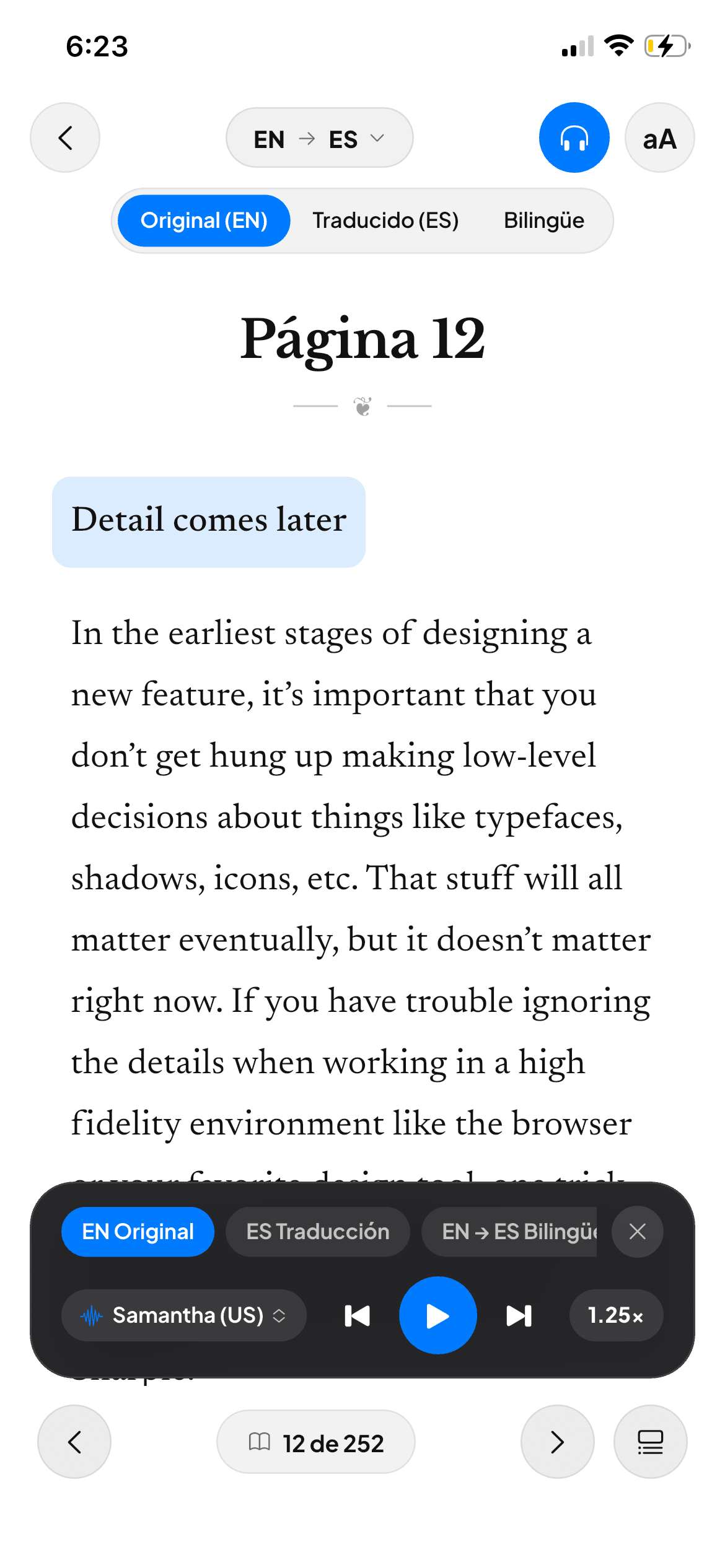
1-Tap Paragraph Translation
Original PDF layout, fonts, and diagrams remain 100% intact.
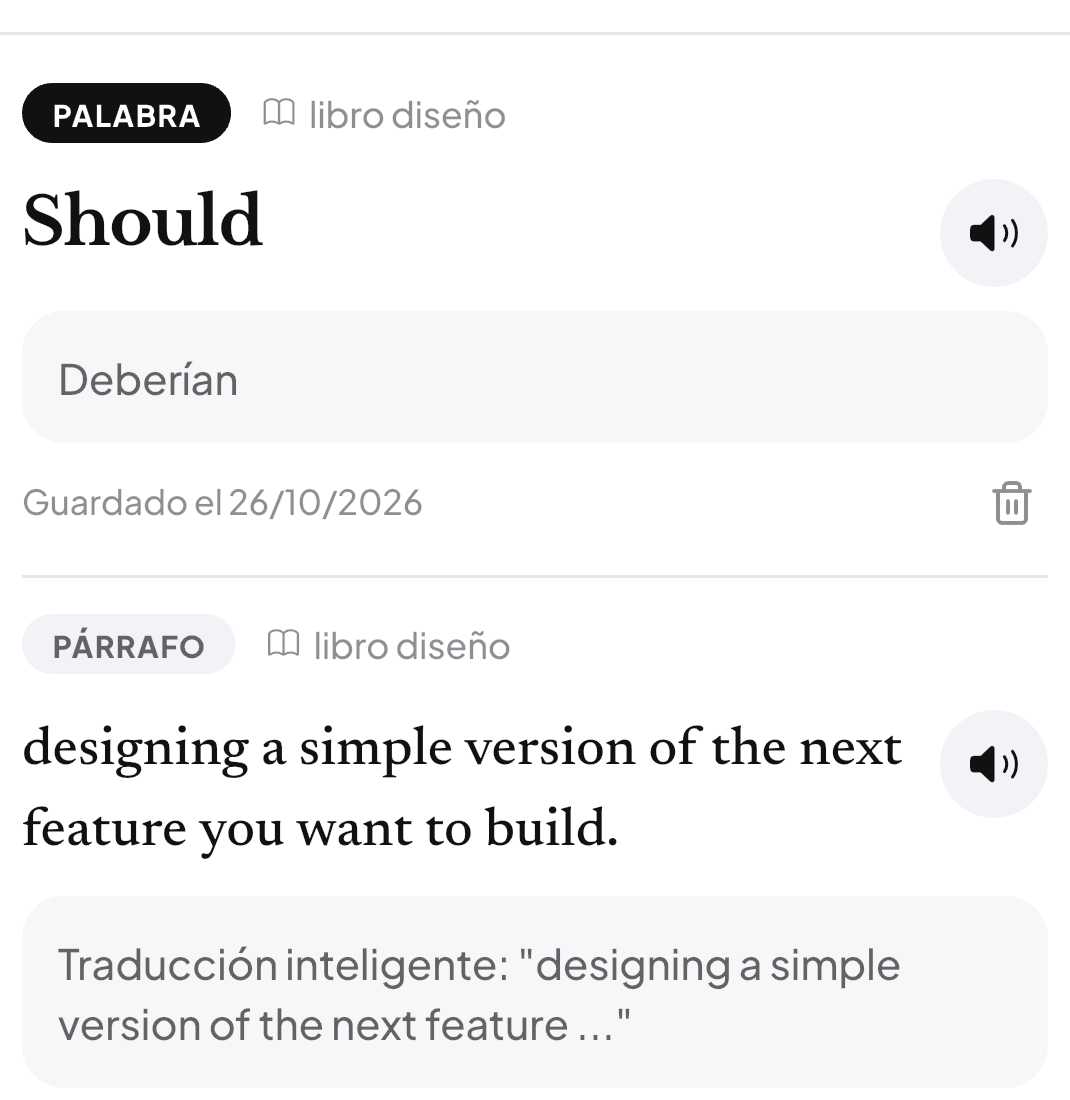
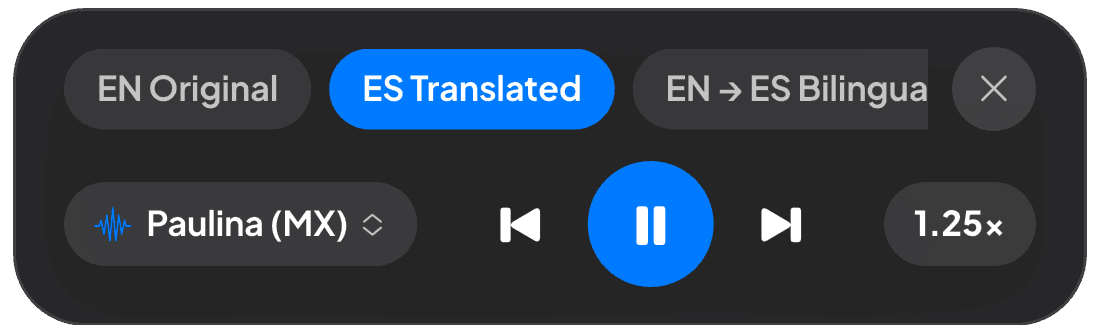
Contextual Glossaries & Dual Audio
Audio speed controls (0.75x–1.25x) with bilingual narration.
1. Instant Import Without File Conversion
Open any textbook, research paper, or manual directly from your iOS Files app, Safari, or AirDrop. No waiting for external servers to convert or flatten your document.
2. Tap-to-Translate Paragraph by Paragraph
Instead of destroying the document’s typography, Readara lets you tap any paragraph to reveal an immediate, contextual, pedagogical translation. The original page layout—including figures, diagrams, code blocks, and math formulas—remains completely undisturbed.
3. Alternating Bilingual Audio
Want to absorb a document while commuting or working out? Switch on Readara’s Audiobook Mode. You can listen to the original text followed by its natural translation, narrated by studio-grade neural AI voices with adjustable speeds (0.75x, 1.0x, 1.25x).
4. Interactive 4-Mode Tutor (Listen, Speak, Translate, Write)
Readara doesn’t just display translated words—it helps you truly assimilate the content:
- Listen: Hear native neural pronunciation for any sentence.
- Speak: Read key paragraphs aloud and get instant 0–100% phonetic accuracy feedback to build speaking confidence.
- Translate: Gain deep pedagogical insights into why specific technical terms were chosen.
- Write: Reinforce technical vocabulary with active recall exercises.
Conclusion: Stop Copy-Pasting, Start Reading Faster
Translating a PDF quickly shouldn’t mean wrestling with broken tables, missing formulas, or clunky cloud converters.
By identifying whether your PDF requires OCR, selecting a paragraph-level interactive approach for technical literature, and leveraging neural dual-coding tools, you can cut your reading time in half while retaining far more information.
Download Readara on the App Store today and experience how fast and seamless reading PDFs in any language can truly be.
Frequently Asked Questions (FAQ) & Related Guides
How can I translate a PDF without ruining tables and mathematical formulas?
Instead of converting the file to Word or overwriting the document layout in cloud translators, open the PDF in Readara and use paragraph-by-paragraph contextual translation. Your original diagrams, LaTeX math, and multi-column grids remain 100% intact—ideal when learning how to read scientific papers faster.
Can I listen to both the original PDF and the translation as audio?
Yes! Readara lets you turn any PDF into an interactive audiobook with alternating bilingual narration, making it effortless to apply the comprehensible input method on foreign-language PDFs.
What is the fastest way to study a translated technical PDF?
Combine in-place paragraph translation with the bimodal reading method for dense PDFs so you absorb complex terminology visually and auditorily at the same time.